

定位方式
Seldom 提供了8中定位方式,与Selenium保持一致。
· id_
· name
· class_name
· tag
· link_text
· partial_link_text
· css
· xpath
import seldomclass YouTest(seldom.TestCase):def test_case(self):"""a simple test case """#打开百度页面self.open("https://www.baidu.com")#根据id定位元素“kw”并输入seldomself.type(id_="kw", text="seldom")#点击self.click(css="#su")#断言浏览器title是seldom_百度搜索self.assertTitle("seldom_百度搜索")
8种定位用法:
self.type(id_="kw", text="seldom")self.type(name="wd", text="seldom")self.type(class_name="s_ipt", text="seldom")self.type(tag="input", text="seldom")self.type(link_text="hao123", text="seldom")self.type(partial_link_text="hao", text="seldom")self.type(xpath="//input[@id='kw']", text="seldom")self.type(css="#kw", text="seldom")

定位一组元素
有时候我们通过一种定位写法不能找到单个元素,需要在一种定位方式中使用下标,在Seldom中可以通过index指定下标。
Selenium中的写法:
driver.find_elements_by_tag_name("input")[7].send_keys("selenium")
Seldom中的写法,在Seldom中不指定index默认下标为0。
self.type(tag="input", index=7, text="seldom")Seldom 简化了Selenium中的API,在webdriver.py中以最简单的方式操作Web页面。所有API如下:
# Accept warning box.self.accept_alert()# Adds a cookie to your current session.self.add_cookie({'name' : 'foo', 'value' : 'bar'})# Adds a cookie to your current session.cookie_list = [{'name' : 'foo', 'value' : 'bar'},{'name' : 'foo', 'value' : 'bar'}]self.add_cookie(cookie_list)# Clear the contents of the input box.self.clear(css="#el")# It can click any text / image can be clicked# Connection, check box, radio buttons, and even drop-down box etc..self.click(css="#el")# Mouse over the element.self.move_to_element(css="#el")# Click the element by the link textself.click_text("新闻")# Simulates the user clicking the "close" button in the titlebar of a popup window or tab.self.close()# Delete all cookies in the scope of the session.self.delete_all_cookies()# Deletes a single cookie with the given name.self.delete_cookie('my_cookie')# Dismisses the alert available.self.dismiss_alert()# Double click element.self.double_click(css="#el")# Execute JavaScript scripts.self.execute_script("window.scrollTo(200,1000);")# Setting width and height of window scroll bar.self.window_scroll(width=300, height=500)# Setting width and height of element scroll bar.self.element_scroll(css=".class", width=300, height=500)# get url.self.get("https://www.baidu.com")# Gets the text of the Alert.self.get_alert_text()# Gets the value of an element attribute.self.get_attribute(css="#el", attribute="type")# Returns information of cookie with ``name`` as an object.self.get_cookie()# Returns a set of dictionaries, corresponding to cookies visible in the current session.self.get_cookies()# Gets the element to display,The return result is true or false.self.get_display(css="#el")# Get element text information.self.get_text(css="#el")# Get window title.self.get_title()# Get the URL address of the current page.self.get_url()# Set browser window maximized.self.max_window()# Mouse over the element.self.move_to_element(css="#el")# open url.self.open("https://www.baidu.com")# Open the new window and switch the handle to the newly opened window.self.open_new_window(link_text="注册")# Quit the driver and close all the windows.self.quit()# Refresh the current page.self.refresh()# Right click element.self.right_click(css="#el")# Saves a screenshots of the current window to a PNG image file.self.screenshots('/Screenshots/foo.png')'''Constructor. A check is made that the given element is, indeed, a SELECT tag. If it is not,then an UnexpectedTagNameException is thrown.<select name="NR" id="nr"><option value="10" selected="">每页显示10条</option><option value="20">每页显示20条</option><option value="50">每页显示50条</option></select>'''self.select(css="#nr", value='20')self.select(css="#nr", text='每页显示20条')self.select(css="#nr", index=2)# Set browser window wide and high.self.set_window(wide,high)# Submit the specified form.driver.submit(css="#el")# Switch to the specified frame.self.switch_to_frame(css="#el")# Returns the current form machine form at the next higher level.# Corresponding relationship with switch_to_frame () method.self.switch_to_frame_out()# Switches focus to the specified window.self.switch_to_window('main')# Operation input box.self.type(css="#el", text="selenium")# Implicitly wait.All elements on the page.self.wait(10)# Setting width and height of window scroll bar.self.window_scroll(width=300, height=500)# Returns the handle of the current window.self.current_window_handle# Returns the handle of the new window.self.new_window_handle# Returns the handles of all windows within the current session.self.window_handles#文件上传# Single file uploadfilePath = r'C:\Users\admin\Desktop\文本文档.txt'self.type(css='.upload-button>input', text=filePath)# Multiple files uploadfilePath = r'C:\Users\admin\Desktop\第一文档.txt'+'\n'+r'C:\Users\admin\Desktop\第二文档.txt'self.type(css='.upload-button>input', text=filePath)
Seldom 在case.py中提供了更加简单的断言方法。断言标题是否等于"title"
self.assertTitle("title")self.assertInTitle("title")self.assertUrl("url")self.assertInUrl("url")self.assertText("text")self.assertAlertText("text")
Web自动化测试常常因为各种原因导致用例失败,而重跑机制可以进一步帮我们确定用例确实是失败了。在Seldom中设置失败重跑非常简单。
import seldomclass YouTest(seldom.TestCase):def test_case(self):"""a simple test case """self.open("https://www.baidu.com")self.type(id_="kw", text="seldom")self.click(css="#su_error")self.assertTitle("seldom_百度搜索")if __name__ == '__main__':"""rerun: 指定重跑的次数,默认为 0。save_last_run: 是否保存保存最后一次运行结果,默认为False。"""seldom.main(path="test_sample.py",rerun=3,save_last_run=False,)
查看截图,点击报告中的show链接即可:
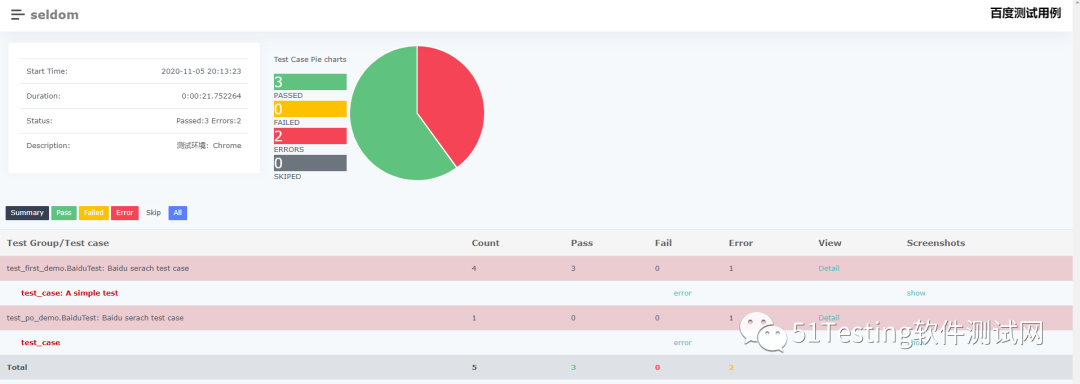
通过@data() 装饰器来参数化测试用例
import seldomfrom seldom import dataclass BaiduTest(seldom.TestCase):#通过@data() 装饰器来参数化测试用例。(case1, 'seldom'),(case2, 'selenium'),(case3, 'unittest'),])def test_baidu(self, name, keyword):"""used parameterized test:param name: case name:param keyword: search keyword"""self.open("https://www.baidu.com")self.type(id_="kw", text=keyword)self.click(css="#su")self.assertTitle(keyword+"_百度搜索")
通过data_class 方法,对测试类进行参数化
import seldomfrom seldom import data_class("keyword", "assert_tile"),[("seldom", "seldom_百度搜索"),("python", "python_百度搜索")])class YouTest(seldom.TestCase):def test_case(self):"""a simple test case """self.open("https://www.baidu.com")self.type(id_="kw", text=self.keyword)self.click(css="#su")self.assertTitle(self.assert_tile)

文件参数化
parameterized.py中的file_data方法判定文件格式,再通过conversion中的方法转化不同文件的参数为list。
csv_to_list() 方法csv文件内容转化为list。file: 指定csv文件的路径。line: 指定从第几行开始读取,默认第1行。excel_to_list() 方法excel文件数据转化为list。file : 指定excel文件的路径。sheet: 指定excel的标签页,默认名称为 Sheet1。line : 指定从第几行开始读取,默认第1行。json_to_list() 方法json文件数据转化为list。file : 指定JSON文件的路径。key: 指定字典的key,默认不指定解析整个JSON文件。yaml_to_list() 方法yaml文件数据转化为list。file : 指定YAML文件的路径。key: 指定字典的key,默认不指定解析整个YAML文件。
例如:csv文件参数化
import seldomfrom seldom import file_dataclass YouTest(seldom.TestCase):def test_login(self, username, password):"""a simple test case """print(username)print(password)
同时还支持ddt
import seldomfrom ddt import ddt, file_dataclass YouTest(seldom.TestCase):def test_case(self, word):"""a simple test case """self.open("https://www.baidu.com")self.type(id_="kw", text=word)self.click(css="#su")self.assertTitle(word + "_百度搜索")if __name__ == '__main__':seldom.main(path="test_sample.py",rerun=0,save_last_run=False,)

链接:https://www.cnblogs.com/watery/p/13934109.html
本文为51Testing经授权转载,转载文章所包含的文字来源于作者。如因内容或版权等问题,请联系51Testing进行删除



文章评论